This page explains how to record screen video in Print Screen Deluxe.
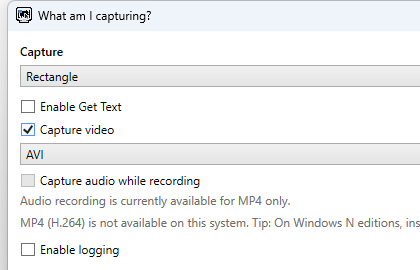
Turn On Video Recording
- Open Print Screen Deluxe.
- Click
What am I capturing?. - Turn on
Capture video. - Pick
AVIorMP4. - If you want sound, turn on
Capture audio while recording. - Click
OK.
Sound recording is available only when the format is MP4.
Start And Stop A Recording
- Pick the capture type you want.
- Press your capture hotkey to start recording.
- Press the same hotkey again to stop recording.
When the recording stops, the video opens in a new tab.
What Each Capture Type Records
Video recording does not use every capture type in the same way.
| Capture setting | What video records |
|---|---|
Full Screen |
The full desktop |
Window Click |
The window you pick |
Auto Scroll |
The window you pick |
Menu |
The open menu window you pick |
Active Window |
A rectangular recording area |
Rectangle, Round Rectangle, Ellipse, Triangle, Polygon, Freehand |
A rectangular recording area |
Clipboard |
The full desktop |
If you want to record one app window, Window Click is usually the clearest choice.
Choose AVI Or MP4
MP4
Use MP4 when you want:
- a common video format
- audio recording
- a smaller, more shareable file in many cases
AVI
Use AVI when:
- MP4 is not available on the PC
- you do not need audio
- you want the app’s fallback format
If MP4 Is Not Available
On some Windows systems, MP4 recording is not available.
If that happens:
- the app shows a message
- Print Screen Deluxe switches to
AVI - you can keep recording with
AVI
The app also suggests the Media Feature Pack for Windows N systems.
Audio Recording
Audio recording works only with MP4.
If you switch away from MP4, the audio option turns off.
Good Ways To Use Video Recording
- record a short software demo
- show a bug that happens over time
- show a menu flow
- record a single window while you work in it
Helpful Tips
- Use
Window Clickfor one app window. - Use
Full Screenwhen you want the whole desktop. - Turn on
Use Time Delayif you need a moment to get ready. - Turn on
Automatically pop up main window when you captureif you want the app to come forward after you stop recording.
If Recording Fails
If video recording cannot start:
- the app shows a message
Capture videomay be turned off
Try these steps:
- Switch to
AVI. - Try again.
- If you were using MP4 on Windows N, install the
Media Feature Pack. - Check the always-on logs if you need more details.
Trial And Purchase Note
Video recording is available during the active trial and after purchase.
If the trial has expired, buy the full version or activate a license key to keep using it.
Next Step
Read Get Text (OCR) if you want words from a picture instead of video, or Troubleshooting And FAQ if MP4 or recording is not working on your PC.