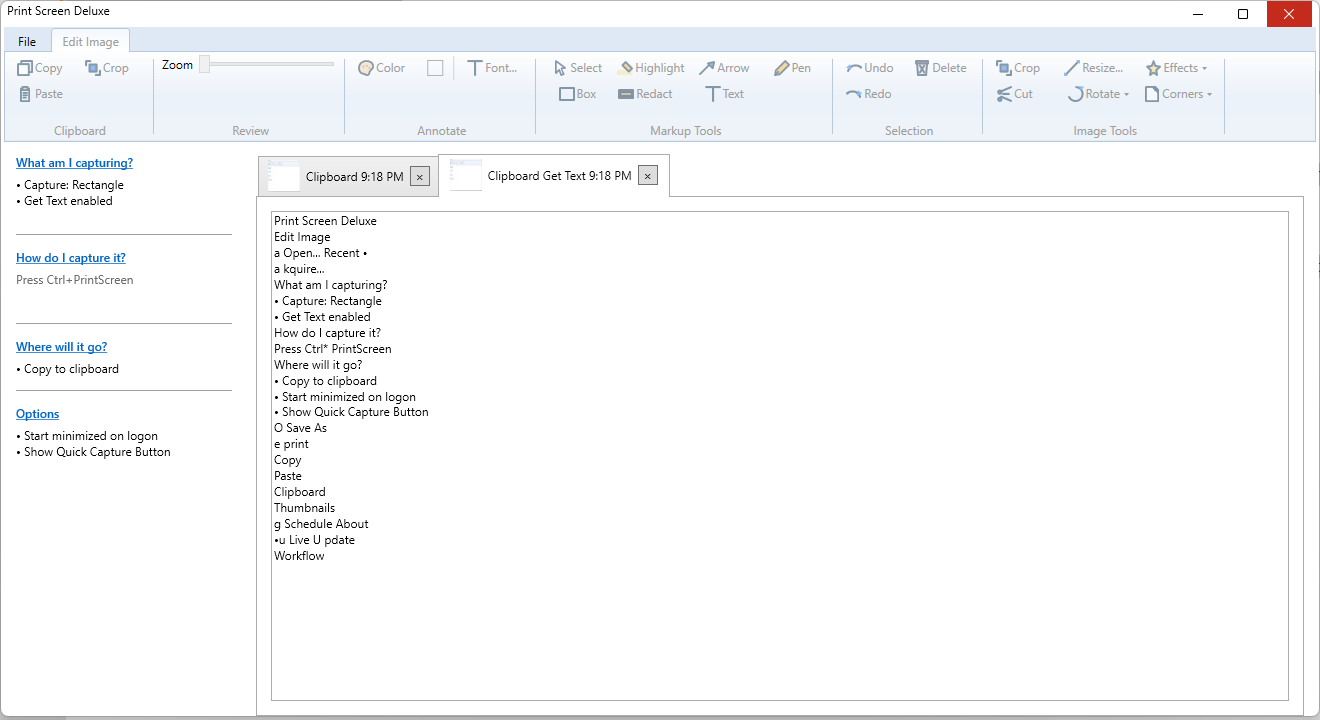
This page explains how Get Text works in Print Screen Deluxe.
Get Text is another name for OCR. OCR means the app reads words from a picture and turns them into normal text.
What Get Text Does
When Enable Get Text is on, Print Screen Deluxe:
- captures the image you asked for
- opens the image in a tab
- creates a text tab with the words it found
The image stays in the app. Get Text adds a text result. It does not replace the image.
Turn On Get Text
- Open Print Screen Deluxe.
- Click
What am I capturing?. - Turn on
Enable Get Text. - Pick the capture type you want.
- Click
OK. - Start the capture.
When the capture finishes, the text result opens in a text tab.
Best Times To Use Get Text
Use Get Text when you want words from:
- an error message
- a web page
- a menu or dialog box
- scanned notes
- printed text in a screenshot
Capture Types That Work Well
Get Text works best when the text is clear and easy to read.
Good choices are:
ActiveWindowWindowClickRectangleMenuClipboard
If the page is long, AutoScroll can help because it creates one tall image before the text is read.
Tips For Better OCR Results
- Capture only the part you need.
- Keep the text large and clear.
- Use a straight capture when you can.
- Avoid blurry or tiny text.
- Use
Cropfirst if the image has too much extra content. - Try
Gray ScaleorInvert colorsoptions if the text is hard to see.
What Happens If Get Text Is Not Available
Some PCs do not have the needed OCR support.
If that happens:
- the app shows a message
Enable Get Textis turned off- your normal image capture still works
The message says that Get Text is not available on this system.
Trial And Purchase Note
Get Text is available during the active trial and after purchase.
If the trial has expired, buy the full version or activate a license key to keep using it.
Good OCR Workflow
- Turn on
Enable Get Text. - Capture only the part with the words you need.
- Open the text tab.
- Copy the text from that tab into the program you need.
Common Questions
Does Get Text work on every image I open?
Use Enable Get Text before you take the capture. That is the built-in flow right now.
Does Get Text change my image?
No. The image tab stays the same. The app adds a separate text tab.
Next Step
Read Video Recording if you want motion instead of a still image, or Troubleshooting And FAQ if OCR is not available on your PC.