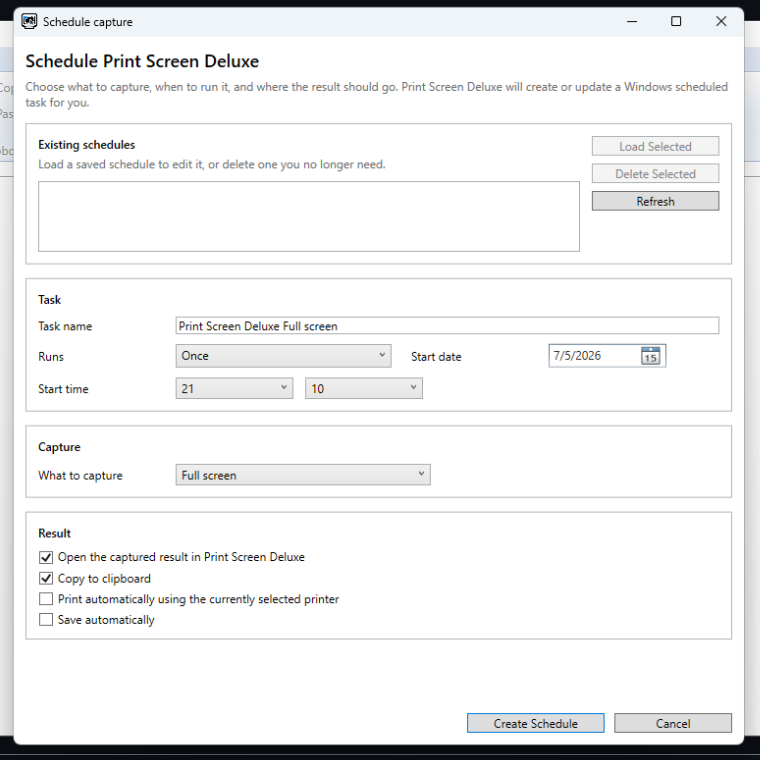
This page explains the Workflow group on the File tab.
Use it when you want Print Screen Deluxe to run later, repeat a capture on a schedule, check for updates, or review logs while you test a workflow.
Workflow Group Buttons
The Workflow group can show these buttons:
| Button | What it does | Good to know |
|---|---|---|
Schedule |
Opens the schedule dialog. | Available during the active trial and after purchase. |
Live Update |
Checks the public v8 App Installer update feed. | Shown only for direct MSIX installs that are not already managed by App Installer or Microsoft Store. |
Help |
Opens the online manual in your browser. | You can also press F1. |
About |
Opens the About window. | Shows product and company details. |
Buy Now |
Opens the trial and purchase window. | Shows only while the app is in trial mode. |
Create A Scheduled Capture
- Open the
Filetab. - In
Workflow, clickSchedule. - Enter a task name.
- Choose when the task should run.
- Choose what to capture.
- Choose what should happen to the result.
- Click
Create ScheduleorUpdate Schedule.
When the save works, the app creates or updates a task in Windows Task Scheduler.
The task is saved here:
Print Screen Deluxe\Your Task Name
What You Can Schedule
Right now, scheduled capture supports only:
Full ScreenActive Window
If you need Window Click, Menu, Auto Scroll, or custom shapes, run those captures by hand for now.
Choose When It Runs
The schedule dialog supports these timing choices:
OnceDailyWeeklyMonthlyYearly
Good to know:
- The start date and time must be in the future.
- Weekly schedules need at least one day checked.
- Monthly schedules can use
Day of monthorNth weekday. - Yearly schedules use a month and a day.
Choose What Happens To The Result
Each scheduled task must do at least one of these things:
Open the captured result in Print Screen DeluxeCopy to clipboardPrint automatically using the currently selected printerSave automatically
If you turn on Save automatically, you can also choose:
- the folder
- the file format
Auto-name filesPrompt for file name each time
For unattended jobs, Auto-name files is the safer choice. A prompt can stop the run and wait for you.
What The Scheduled Task Uses
The scheduled task starts Print Screen Deluxe with one-run capture switches.
That means the scheduled job uses the choices from the schedule dialog for that run. It does not permanently change your normal capture setup.
Edit Or Delete A Schedule
The top of the dialog shows Existing schedules.
Use these buttons:
Load Selectedto edit a saved scheduleDelete Selectedto remove a schedule from Windows Task SchedulerRefreshto reload the list
If you save with a task name that already exists, the app updates that schedule.
Good Scheduled Workflows
- Capture the full screen every morning and save it to a folder.
- Capture the active window every week and print it.
- Capture on a timer and open the result in the app so you can review it.
Check Logs While You Test
If a scheduled run does not do what you expect, test the schedule again and then check the always-on logs.
The normal log file is here:
%APPDATA%\PrintScreenDeluxe\psd-YYYY-MM-DD.log
If the app crashes during startup, the crash file is here:
%TEMP%\PrintScreenDeluxe\startup-crash.txt
Live Update
Use File > Workflow > Live Update when you want the app to check for a newer version.
For direct MSIX installs that do not yet have a registered App Installer update feed, this opens the Print Screen Deluxe .appinstaller URL:
https://www.americansys.com/downloads/PrintScreenDeluxe-8.appinstaller
If a newer v8 package is available, Windows App Installer handles the install or update confirmation. After that, Windows can use the registered .appinstaller feed for future updates.
If the public feed version is the same as the installed version, the app reports that Print Screen Deluxe is up to date.
If the app was already installed with a registered .appinstaller feed, the Live Update button is hidden because Windows manages updates automatically.
About
Use File > Workflow > About when you want to see:
- the app name and version
- the company web site
- copyright details
Tips
- Pick a clear task name so it is easy to find later.
- Use
Auto-name filesfor runs that happen while you are away. - Check the next run time in Windows Task Scheduler if you are not sure when a job will run.
- Check the always-on logs after you test a new schedule.
Next Step
Read Save, Copy, And Print for auto-save and auto-print details. Read Troubleshooting And FAQ if a scheduled job or update does not work the way you expect.